14. The interactive tester
The interactive tester, or TextUI, lets you explore the app without writing a debugging interface. Load a solution, inspect individual moves, change parameters and watch a search. It uses the same Session operations and checks as your code.
Enable the optional TUI component, based on FTXUI:
find_package(EasyLocal CONFIG REQUIRED COMPONENTS Core TUI)
target_link_libraries(tsp_tui PRIVATE EasyLocal::TUI)
auto application = el::app("tsp")
    | (el::solution_manager<TourManager>() | el::component<TourLength>())
    | (el::neighborhood<TwoOptExplorer>()
        | el::delta<TourLength, TwoOptLengthDelta>())
    | el::runner<runners::FirstImprovement>("fi")
    | el::runner<runners::SimulatedAnnealing<Classic>>(
        "sa",
        {.temperature = {.initial_temperature = 10.0, .final_temperature = 0.1}});

el::tui::run(
    application,
    {
        .title = "TSP tester",
        .seed = 2026, // the RNG for random solutions, moves and stochastic runners
        .input_path = EASYLOCAL_TUTORIAL_INSTANCE, // loaded with the read_input hook
    });
tui::run(application, options) opens the tester and returns when you quit.
If input_path is set, it loads the instance through your read_input hook.
Otherwise, load an instance from the Input/Output page.
The program is examples/tutorial/tui_main.cpp, built when the TUI component
is enabled (-DEASYLOCAL_ENABLE_TUI=ON).
A tour of the pages
The tester has three pages, switched with F3, F4 and F5; the header shows the instance, the current seed and the cost of the current solution.
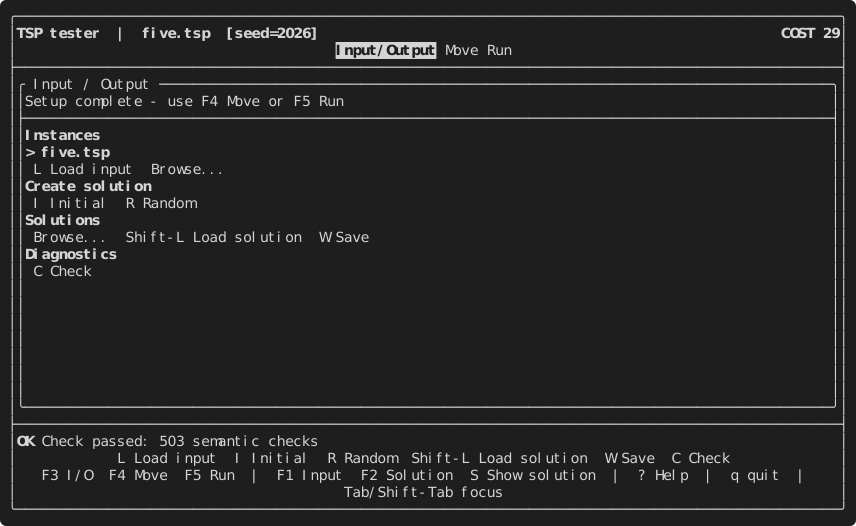
On the Input/Output page, I creates the initial solution and C runs the
app check of chapter 15:
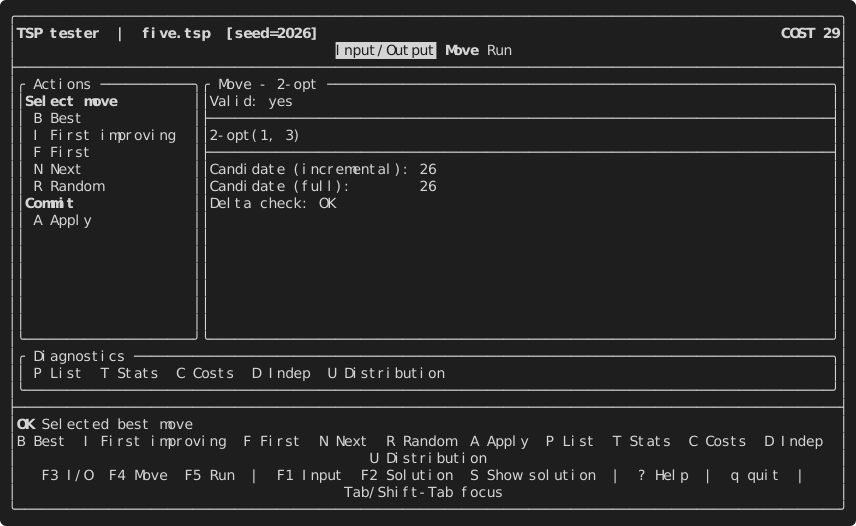
On the Move page, B selects the best move; the panel shows its incremental
and full evaluation, and A would apply it:
On the Run page, press G or Enter on the runner list to edit the selected
runner's parameters. These are the same settings exposed in chapter 10, with
their descriptions and current values. Enter starts the run; Esc cancels:
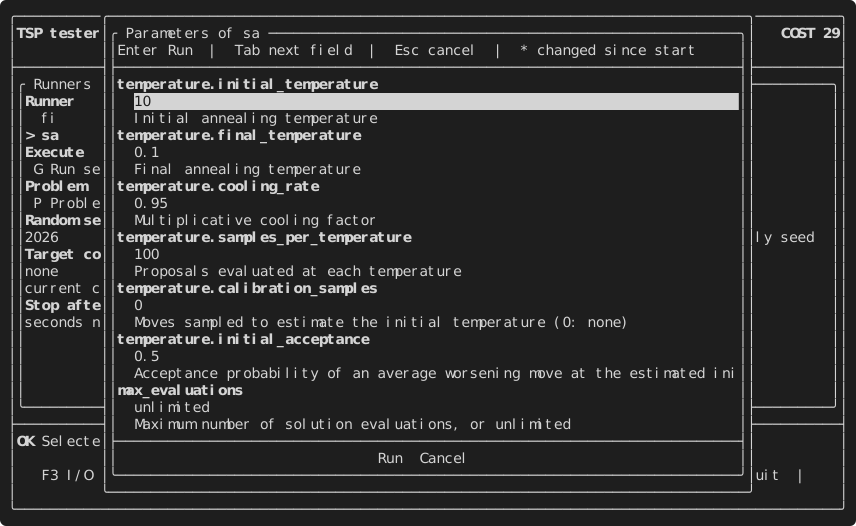
Validation happens before the run. An invalid value, such as a cooling rate of 2, keeps the window open and displays an error without applying changes. Accepted values remain for later runs; the Run page lists settings changed since startup. A runner with no parameters starts directly.
The runner runs in the background with live progress and can be stopped with
X; here Simulated Annealing improves the tour from 29 to 26:
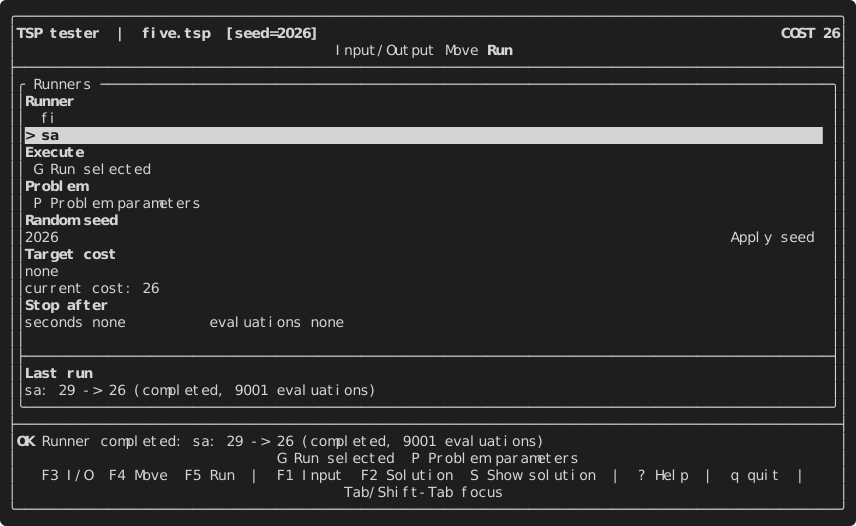
Use Target cost to stop at a known optimum or lower bound. A target of 26
ends this search at the first optimal tour. Enter a number for a scalar cost
or [hard, soft] for a hierarchical one; the current cost below the field
shows the format. Leave the field empty for no target.
The Stop after fields set limits in seconds and evaluations, including the initial evaluation. Empty fields leave the runner's own limits in effect. After a run, the controls and status line show the before/after costs and termination reason.
Press P to edit shared problem parameters, such as cost weights (chapter 2)
or neighborhood biases (chapter 7). Applying them updates the header cost
and Move page evaluations as well as future runs.
On a small terminal, pages scroll to keep the focused control visible. Move between controls with Tab or the arrow keys. The screenshots above come from the actual tutorial program; the same interactions are covered by the TUI's end-to-end tests.
Loading, saving and displaying
The TextUI reuses the I/O and display hooks from
chapter 6:
read_input, read_solution, write_solution and describe. The solution
window (S or F2) also shows the component report from chapter 12.
Commands requiring missing hooks are hidden. For display, a Solution without
describe falls back to write_solution; a value with neither appears as
not printable.
The page title of the Move page, Move - 2-opt, comes from a static name()
member of TwoOptExplorer:
// The name of the neighborhood in the interactive tester (chapter 14).
static std::string_view name()
{
    return "2-opt";
}
Several apps on the same problem
The moves the tester shows are those of the app's neighborhood. To explore
several neighborhoods, one per app, open them from a launcher: a list of
apps that share the Input and the current solution.
The tutorial's launcher_main.cpp has one app for the 2-opt moves and one for
the swaps, over the same SolutionManager recipe:
// The SolutionManager recipe of both apps: the launcher passes the Input and
// the solution from one app to the other, so they must have the same one.
auto tour_manager()
{
    return el::solution_manager<tutorial::TourManager>()
        | el::component<tutorial::TourLength>();
}

// One app per neighborhood. The type of an app spells out all its recipes, so
// the functions let auto deduce it.
auto two_opt_app()
{
    return el::app("tsp-two-opt") | tour_manager()
        | (el::neighborhood<tutorial::TwoOptExplorer>()
            | el::delta<tutorial::TourLength, tutorial::TwoOptLengthDelta>())
        | el::runner<el::runners::FirstImprovement>("fi");
}

auto swap_app()
{
    return el::app("tsp-swap") | tour_manager()
        | el::neighborhood<tutorial::SwapExplorer>()
        | el::runner<el::runners::FirstImprovement>("fi");
}
el::tui::run_launcher(
    {
        .title = "TSP launcher",
        .tester =
            {
                .seed = 2026,
                .input_path = EASYLOCAL_TUTORIAL_INSTANCE,
            },
    },
    two_opt_app(),
    swap_app());
- The launcher owns the Input, read from
tester.input_pathwhen it is set, and the current solution. Its first entry, Input and solution, opens the Input/Output page alone: load another instance, load or save a solution, create the initial or a random one. - Each app opens on the shared Input and solution. When you leave it with
q, its state returns to the launcher. You can improve a tour with swaps, then open it in the 2-opt app to inspect further moves. Loading an instance or solution also updates the shared state. - Since solutions pass from one app to the other, the apps must have the same SolutionManager recipe, cost included: they differ in the neighborhood and the runners. A launcher of apps with different recipes does not compile.
- To search with both neighborhoods at once, compose them in one app with
neighborhood_union(chapter 7); the launcher is for examining them one at a time. - To run searches with different neighborhoods from one app, give a runner a
neighborhood of its own, the third argument of
runner: it is built over the app's SolutionManager, next to the app's neighborhood, and its parameters are underrunners.<name>.neighborhood.*:
// One app with both neighborhoods: its own is 2-opt, the runner "fi" uses it,
// and the runner "fi-swap" brings its own, built over the same
// SolutionManager.
inline auto tsp_app()
{
    return easylocal::app("tsp") | tsp_solution_manager()
        | (easylocal::neighborhood<TwoOptNeighborhoodExplorer>()
            | easylocal::delta<TourLengthComponent, TwoOptTourLengthDelta>())
        | easylocal::runner<easylocal::runners::FirstImprovement>(
            "fi",
            {.max_evaluations = 100})
        | easylocal::runner<easylocal::runners::FirstImprovement>(
            "fi-swap",
            {.max_evaluations = 100},
            easylocal::neighborhood<SwapCitiesNeighborhoodExplorer>()
                | easylocal::delta<TourLengthComponent, SwapTourLengthDelta>());
}
Options
Use tui::options to set the title, random seed and initial input_path and
solution_path. Relative paths use path_base, or the working directory if
it is empty. path_display controls how paths appear.
Three options bound display and diagnostic work:
| Option | Default | Purpose |
|---|---|---|
max_render_chars |
4096 | maximum displayed bytes per Input, solution or move; 0 removes the limit |
max_diagnostic_entries |
256 | maximum entries in the neighbors list |
random_distribution_rounds |
20 | random samples per valid move in the distribution check |
The seed controls random solutions, moves and stochastic runs. To reset it during a session, edit Random seed on the Run page and press Enter or Apply seed. The RNG restarts and the header shows the new seed.
See also
Next steps
Chapter 15 checks the composed problem, from code and from the tester.